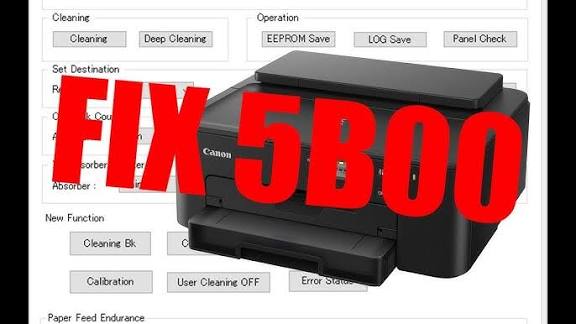
Canon Pixma TS700 series/TS701, TS702, Ts703, 704, TS705 Adjustment Program (Service Tool) for Ink Absorber Full Reseter for ERROR 5B00, 1700, 5B02

* Essential software utility for the Canon Pixma TS701, TS702, Ts703, 704, TS705 printer.
* Function: This program is the official Service Tool used to resolve the common "Waste Ink Pad Full" error (often indicated by 5B00, 1700, 5B02 and flashing lights). It allows technicians and users to electronically reset the internal waste ink absorber counter back to zero, restoring full printer functionality.
Compatibility: Canon Pixma TS704. Requires USB connection and Windows OS.
Contact; +2347056326048 on WhatsApp for instructions or click the link to chat on how to reset after purchase https://wa.me/message/IGVWUWBWRKQXG1
*Delivery: Digital download provided immediately upon purchase.
Restore your Canon TS704’s printing capability instantly.
🛠️ Process for Entering Canon TS704 Service Mode
To successfully use the Adjustment Program (Resetter), your printer must first be placed into Service Mode. Follow these steps precisely:
1. Ensure Printer is Off: Make sure the printer is powered completely OFF, but the power cable is connected to the wall socket.
2. Press and Hold RESUME: Locate the RESUME/STOP button (the button with the triangle and circle symbol) and press it down. Keep holding this button.
3.Press and Hold POWER: While still holding the RESUME button, press and hold the POWER button.
Release RESUME (Keep Holding POWER): While continuing to hold the POWER button, release the RESUME button.
4. Press RESUME Five Times: While still holding the POWER button, press the RESUME button five (5) times in quick succession.
Release POWER:
5. Release the POWER button.
🔑 ST5610 Service Tool: Key Generation and Reset Procedure
This process involves three main parts: Key Generation, Program Activation, and Counter Reset.
Part 1: Generate the Activation Key
Open the Keygen: Locate and execute the Key Generator program file (often a small application like keygen.exe).
Enter Username: In the Key Generator application, locate the field designated for "Username" or "HWID". Enter any desired username (e.g., your name, or "TS704").
Generate Key: Click the "Generate" button (or similar button like "Create Key").
Copy the Key: The Key Generator will instantly produce a unique serial or activation code. Copy this code. This is the key you will use to activate the main service tool program.
Part 2: Activate the Service Tool Application
Open ST5610 Tool: Launch the main ST5610 Service Tool application.
Activation Prompt: The program will immediately prompt you for an activation or registration code.
Insert Code: Paste the copied activation key from the Key Generator into the required field in the ST5610 Service Tool program.
Confirm/Continue: Click "OK", "Register", or "Continue" to activate the software. The program should now open to its main interface.
Part 3: Clear the Waste Ink Counter
Prerequisite: Ensure your Canon TS704 is connected via USB and is already in Service Mode (as detailed in the previous instructions).
Select Printer: In the ST5610 Service Tool window, verify that your printer (TS704) is selected or detected in the main dropdown menu (often located near the top).
Locate Absorber Section: Look for the section titled "Ink Absorber Counter" or "Waste Ink Pad".
Read Counter (Optional but Recommended): Click the "Set" button next to "Main" under the "Reading" column. This will display the current percentage of the waste ink counter (which should be near 100% or more, causing the error).
Execute the Reset:
Under the "Setting" column, look for the text box labeled "Counter Value (%)" or similar. Select "Main" from the corresponding drop-down or radio button.
Click the "Set" button located beneath the "Setting" section (or beside the counter selection).
Confirmation: The program will process the command. Wait for a confirmation message indicating that "The value has been changed" or "Function finished". The counter should now be reset to 0.00%.
Final Steps:
Close the ST5610 Service Tool program.
Turn the Canon TS704 printer OFF using the POWER button.
Wait approximately 10 seconds, then turn the printer ON again.