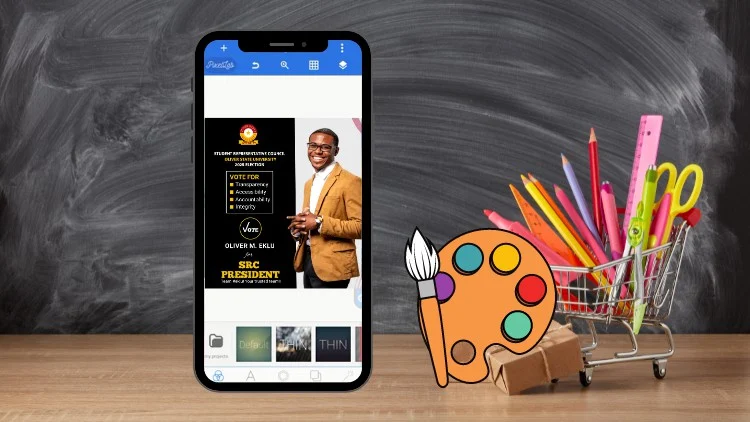
PHONE GRAPHIC DESIGN

HOW TO USE A SMARTPHONE TO DO GRAPHIC DESIGN
A Beginner’s Guide to Designing Like a Pro — Right from Your Pocket!
INTRODUCTION
Gone are the days when you needed a big computer and expensive software to do graphic design. Today, all you need is a smartphone, a good eye for design, and the right apps — and you're good to go!
Whether you're a content creator, small business owner, student, or just someone who loves design, your smartphone can be a powerful tool for creating stunning graphics — anytime, anywhere.
This guide will walk you through everything you need to know to get started with graphic design on your smartphone.
WHAT YOU NEED
Before diving in, here’s a checklist of the things you'll need:
- A smartphone (Android or iOS)
- A reliable internet connection (for downloading apps & assets)
- Basic design apps (listed below)
- Creative mindset and willingness to learn
BEST GRAPHIC DESIGN APPS FOR SMARTPHONES
Here are some popular and beginner-friendly apps to get you started.
1. Canva
- Purpose: All-in-one graphic design tool
- Features: Templates, fonts, stock images, drag-and-drop editing
- Best for: Flyers, social media posts, logos, posters
2. Pixellab (Android) / Over (now GoDaddy Studio) [iOS & Android]
- Purpose: Adding text to photos, editing layers
- Features: 3D text, background eraser, stickers, font styles
- Best for: Typography-based designs
3. Adobe Express (formerly Spark Post)
- Purpose: Create social media graphics with ease
- Features: Brand kits, templates, quick export
- Best for: Business branding and marketing materials
4. Ibis Paint X / Infinite Design / SketchBook
- Purpose: Digital illustration and drawing
- Best for: Hand-drawn art, logos, character design
5. Remove.bg / Background Eraser
- Purpose: Removing backgrounds from photos
- Best for: Clean cutouts for logos or collages
STEP-BY-STEP: HOW TO CREATE A GRAPHIC DESIGN ON YOUR PHONE
STEP 1: PLAN YOUR DESIGN
- Ask yourself: What is the purpose of this design? (Social media post, flyer, banner, etc.)
- Choose the right size/dimension for your design
- Instagram post: 1080x1080 px
- Instagram story: 1080x1920 px
- Flyer: A4 (2480x3508 px)
STEP 2: PICK THE RIGHT APP
Choose an app based on what you're creating. For example:
- Canva for flyers
- Pixellab for quotes
- Ibis Paint X for illustrations
STEP 3: START WITH A TEMPLATE OR BLANK CANVAS
- Using a template can save time
- You can always customize fonts, colors, and images
STEP 4: ADD TEXT, SHAPES & IMAGES
- Choose fonts that are readable and match the vibe of your design
- Use high-quality images — either your own or from free stock libraries (like Pexels, Unsplash)
- Don’t overload your design with too much text
STEP 5: USE COLORS WISELY
- Stick to 2–3 main colors for consistency
- Use color theory — complementary colors often look great together
- Use transparent overlays or gradients for a professional touch
STEP 6: SAVE & EXPORT
- Export in high resolution (PNG for graphics, JPG for photos)
- Keep a copy of your editable file if you plan to make changes later
DESIGN TIPS FOR BEGINNERS
- Keep it simple: Less is more. Don't overcrowd your design.
- Use alignment tools: Most apps have guides to help you align objects properly.
- Font pairing: Mix a bold headline font with a simple body text font.
- Contrast: Make sure your text stands out from the background.
- Consistency: Use the same font styles and color palette across your designs.
RESOURCES FOR DESIGN ELEMENTS
Here are some websites where you can find free design assets to use in your mobile designs:
- Pexels.com – Free stock photos and videos
- Unsplash.com – High-quality, free images
- Remove.bg – Background remover tool
- Flaticon.com – Free icons
- Colorhunt.co – Beautiful color palettes for your designs
HOW TO GROW YOUR SKILLS
- Watch tutorials on YouTube (search for “Canva tips” or “Pixellab flyer design”)
- Follow graphic design pages on Instagram and TikTok
- Join design groups on Facebook or Telegram
- Practice every day — even simple designs help build your eye for layout and balance
MONETIZE YOUR DESIGNS
Once you get comfortable designing with your smartphone, you can start offering your services or selling designs:
- Create social media content for small businesses
- Sell templates (on Selar, Etsy, Gumroad, etc.)
- Offer logo/flyer/poster design services
- Start a design-related Instagram or YouTube channel
CONCLUSION
You don’t need to wait until you have a fancy laptop or Photoshop. You can start creating amazing designs right now with the smartphone in your hand.
With the right tools, consistent practice, and a little creativity — your phone becomes your studio.
Now go forth and design your world — one tap at a time!
BONUS: QUICK LINKS TO RECOMMENDED APPS
- Canva: https://www.canva.com
- Pixellab: Available on Google Play Store
- GoDaddy Studio (Over): https://www.godaddystudio.com
- Ibis Paint X: Available on Google Play & App Store
- Adobe Express: https://www.adobe.com/express
- Remove.bg: https://www.remove.bg
JOIN THE CLASS NOW