
BRAW - FILM LOOK DYNAMIC LUT
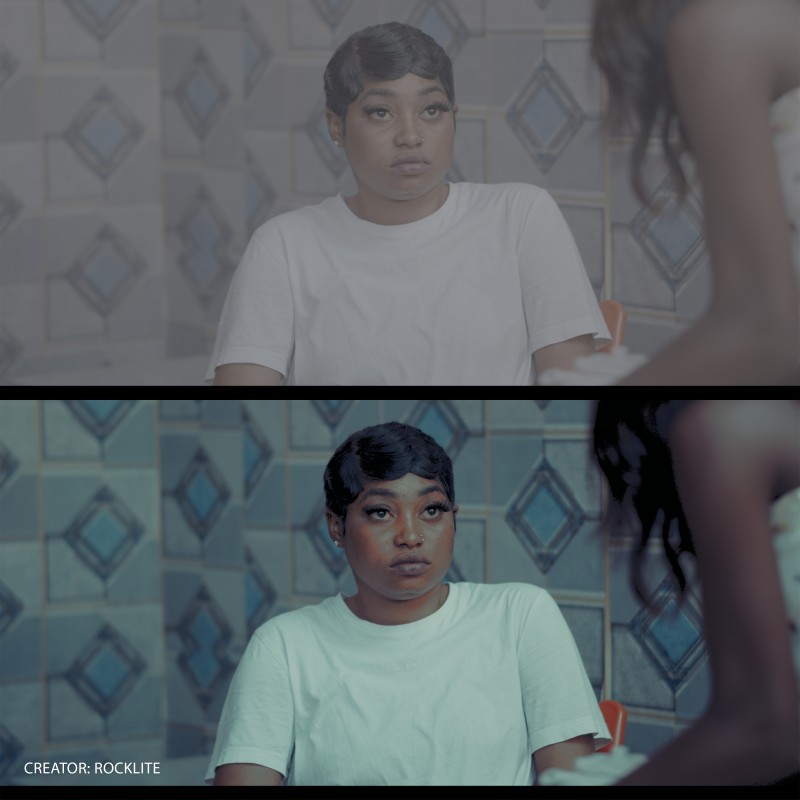
Transform your Blackmagic RAW (BRAW) footage into a clean, cinematic look with this professional-grade LUT designed for both DaVinci Resolve Free and DaVinci Resolve Studio.
This LUT applies a two-stage conversion:
BRAW ➜ REC.709
Accurately normalizes Blackmagic RAW footage with balanced contrast and neutral color response.
REC.709 ➜ Film Look
Adds soft filmic contrast, natural highlight roll-off, and subtle color styling inspired by classic motion picture film.
Perfect for filmmakers, colorists, content creators, and anyone who wants a quick, powerful, cinematic base grade — whether you're working on narrative films, commercials, music videos, or YouTube content.
✔️ Key Features
Works on DaVinci Resolve Free & Studio
Compatible with BRAW source footage
Filmic contrast curve
Soft highlight roll-off
Rich, cinematic color palette
Easy drag-and-drop installation
Works on Mac, Windows, and Linux
📥 How to Install (DaVinci Resolve)
Method 1: Install via LUT Folder
Open DaVinci Resolve.
Go to DaVinci Resolve > Preferences (or Resolve > Preferences on Windows/Linux).
Select Color Management or Color tab.
Click Open LUT Folder.
Copy the LUT file (.cube) into the folder.
Go back to Resolve and click Update Lists or restart Resolve.
Your LUT will now appear under the LUTs section in the Color page.
Method 2: Add LUT in the Color Page
Go to the Color page.
In the LUTs panel, right-click and choose Open LUT Folder.
Paste your LUT file inside.
Restart Resolve or click Update Lists.
Apply the LUT by right-clicking a node and selecting it from the LUT menu.